+ Script info

+ List of available parameters and their script set defaults (null'ed items unless specified get UNSET()):

+ Importing 'cats.ini' key => value pairs from all directories starting in [DOCUMENT_ROOT] thru /sean/code/hotrkeyz...

+ UNSET()'ing any parameters = 'null'....7 parameters removed

+ Current [PARAM]eters for this page (CATS.INI::[defaults] + URL-based parameters)

+ Current [KEYWORDS] for this page (CATS.INI / [keywords])

+ Retrieving templates...

+ Combining templates; [RECORD]set=>[TABLE]=>[BODY]=>[PAGE]<=NAV

+ Applying S&R on tokenized entries (parameter, _SERVER, keyword, and script)...www.shrum.net/sean/code/hotrkeyz
 
Wednesday, Feb 18th  2026 @ 23:56:45  


www . shrum.net /sean/code/hotrkeyz
All scripting, coding, html, layout, design, .... basically everything here done by yours truly. - S


x86 x64 news
 
filter
 clear search
 
 
Hotrkeyz

 Hotrkeyz

A simple, folder/file based hot key utility for creating your own set of combos.  Great for launching frequently used files, programs, etc or to even launch multiple tasks with 1 combo.
 

Introduction

Just a simple folder-to-hotkey utility I cooked up for another project for creating your own hotkeys in Windows.  Allows for Ctrl, Alt, Win, Shift, and a large number or other special key combos as well as allowing for multiple files & programs to be launched with 1 combo.  Worked so good in the originating project I decide to break this functionality out into a separate program.

...and yes, I realize that there are hotkey apps out there already but I wanted to make my own the way I liked. :-P

It's Windows-based, open source (GNU), and solely written, maintained, hosted, and supported by me, Sean Shrum. Source code is written with AutoIT (.au3) and the most recent version can be found via the source link in the navbar above.  If you're just looking for the latest binary build, it can be downloaded from the binary link in the navbar above.

Hotrkeyz follows the Send() functionality of AutoITScript.  If you need a complete listing of the keystrokes that can be sent and special codes for non-standard keys, look there.


Usage

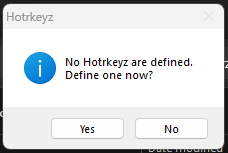
First time run will display the following dialog once (subsequent runs will be silent)...

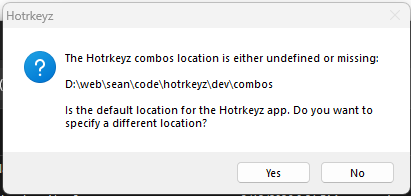
Next, you will be prompted for a folder in which to look for combos (default is executable location in a subfolder named \combos; Hotrkeyz will create this folder for you automatically if you do not specify one by hitting [Cancel] or "esc" in the folder selection window). This folder can be located anywhere you choose (and will be saved in the registry under HKCU\software\shrum.net\hotrkeyz in the 'combos' string).  In this folder is where the app will create the various keyboard combinations as subfolder names.  As I'm using AutoITScript's shortcut keys for Ctrl, Alt, Win, and Shift, you can familiarize yourself with the following conversions:

  • Ctrl = ^
  • Alt = !
  • Win = #
  • Shift = +
  • ...etc...

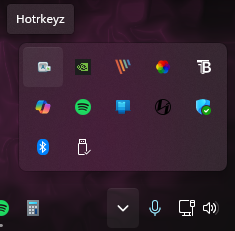
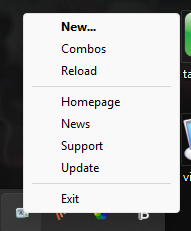
After launching Hotrkeyz, a systray icon will appear. Right clicking on this icon will produce the following pop-up systray menu:

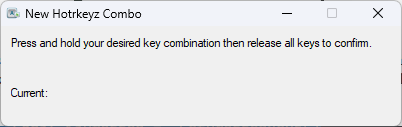
Left clicking the icon or by selecting '...New' from the right mouse click systray menu will display a dialog into which you can define new key combos, like this:

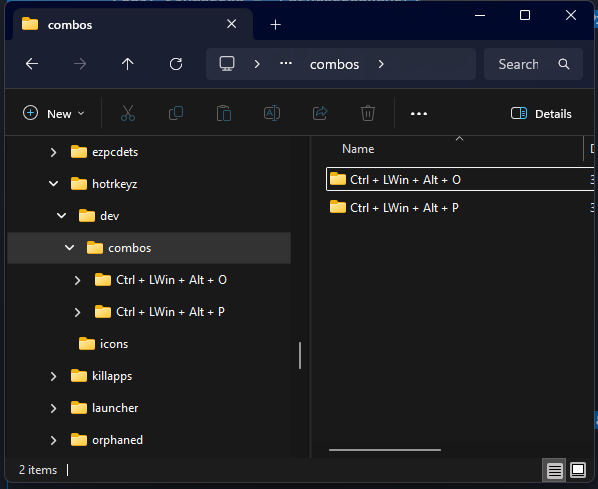
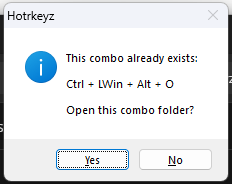
If the shortcut has not been defined, the app will create the following structure and display Windows Explorer in the newly defined combo location. If the defined combo already exists, you will be prompted to try again or navigate to the combo folder.

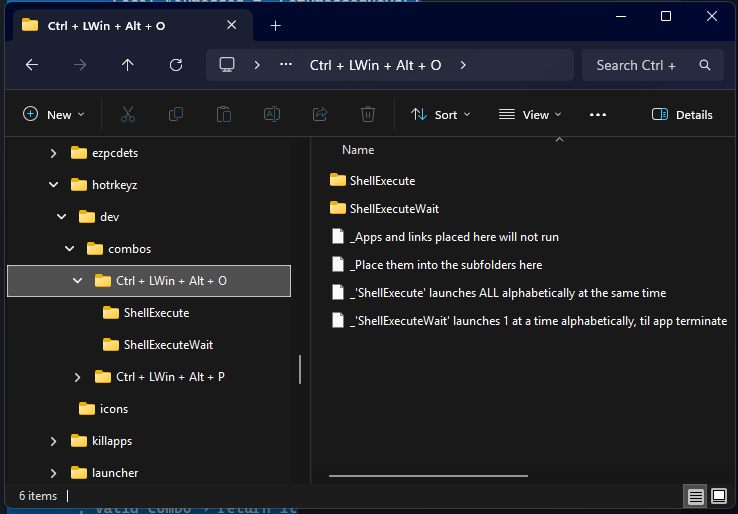
A sample of the created combo folder structure (and app 'reminders') will appear as below:

Once you have the combo folder created, you can place whatever files, executables, or even shortcuts that you want launched into that folder.  You may also place as many files into the folder that you want.  You can navigate to your defined combos folder by clicking on '...Combos' from the SysTray menu. Whenever you activate the defined hotkey, all the files in the folder are launched via ShellExecute() and ShellExecuteWait().

When running files and shortcuts in your combo "shell" folder, Hotrkeyz does so alphabetically.  So if you want to execute commands in a specific order, create shortcuts to them and rename the shortcuts as 1-<shortcut>, 2-<shortcut>, etc.  This will allow you to control launch order.


FAQs

Q. Where should I set my combos directory to?  What's the deal?

A. Typically, if you are only using one PC, any location will be fine (create a Hotrkeys folder, place the executable there, launch it, and point to that folder to place it under the Hotrkeys folder).  However, if you have a work PC and a home PC and want to use the same set of combos on both, you can define the location on a removable storage device and be able to use the same combos on multiple systems.

Q. When invoking a combo, Windows prompts me for a program to run with the file?

A. If a file you placed into one of the "Shell" folders does not have a association with it, Windows doesn't know how to launch them and it will prompt you to select an app to use. Simply define the app to run on the associated file type and the next time, Windows will launch the app you selected with the file.

Q. Does the \combos folder have to be under the executable location?

A. If on first run you do not specify a location, the folder where they hotrkeyz executable is becomes the default location and a "\combos" subfolder is automatically created. You can modify the location that Hotrkeyz looks for combos by...

1. If the app is NOT RUNNING, move the existing combos folder to another location. The next time the app is launched, it will display a dialog indicating it could not locate the "combos" folder and you will be prompted for the new location.

2. If the app IS RUNNING, move the existing "combos" folder to the new desired location, then select "Reload" from the SysTray menu. It will display a dialog indicating it could not locate the "combos" folder and you will be prompted for the new location.

3. Creating / change the registry: HKCU\software\shrum.net\Hotrkeyz\Combos (string word) <path to your combos with no trailing backslash>

Q. What is a good combo starter that won't interfere with Windows pre-defined ones?

A. In the NEW combo window, the default starter is what I call the "3 finger salute"....or "CTRL+WIN+ALT"  aka in Hotrkeyz-speak: "^#!".  Using this precursor with any follow up keystroke should work. It's easy to hit and Windows (to date) doesn't use it that I'm aware of.  You are free to define whatever combo you like...just be aware that MS loves to add new keyboard shortcuts.

Q. Some of my Hotrkeyz combos stop working over time?

A. This can happen if a later launched application also uses the same shortcut key combination. When the program quits, the keystroke is no longer assigned (no fallback). You can reload your combos by using the Reload SysTray menu item or by simply closing and relaunching Hotrkeyz

Q. Some of my Hotrkeyz combos don't work at all?

A. Remember, there are pre-defined Windows shortcuts that CAN NOT be over-ridden such as WIN+E (#e = Explorer), WIN+R (#r - Run window), CTRL+C (^c = Copy), and so on,  These reservations differ on different versions of Windows and I cannot keep updating a checklist for this so I leave that up to you to determine. For a list of reserved shortcuts in Windows see http://support.microsoft.com/kb/126449


top

Page generation time = 0.0014/s
Page size (minus graphic elements) = 34kb

bookmark

feedback print

back

Since 1992 - shrum.net

Copyright 2026 Sean Shrum


CATS.PHP [C]ontent [A]cquisition and [T]emplating [S]cript v.4.14 [ 2025.12.14 ] by Sean Shrum